
Quick Answer
Open the mini map, then check the event icons on the left side of the large map. The Traveling Merchant marker looks like a dark flame icon. Select the entry for the Traveling Merchant event, and the map will show where the merchant appears.
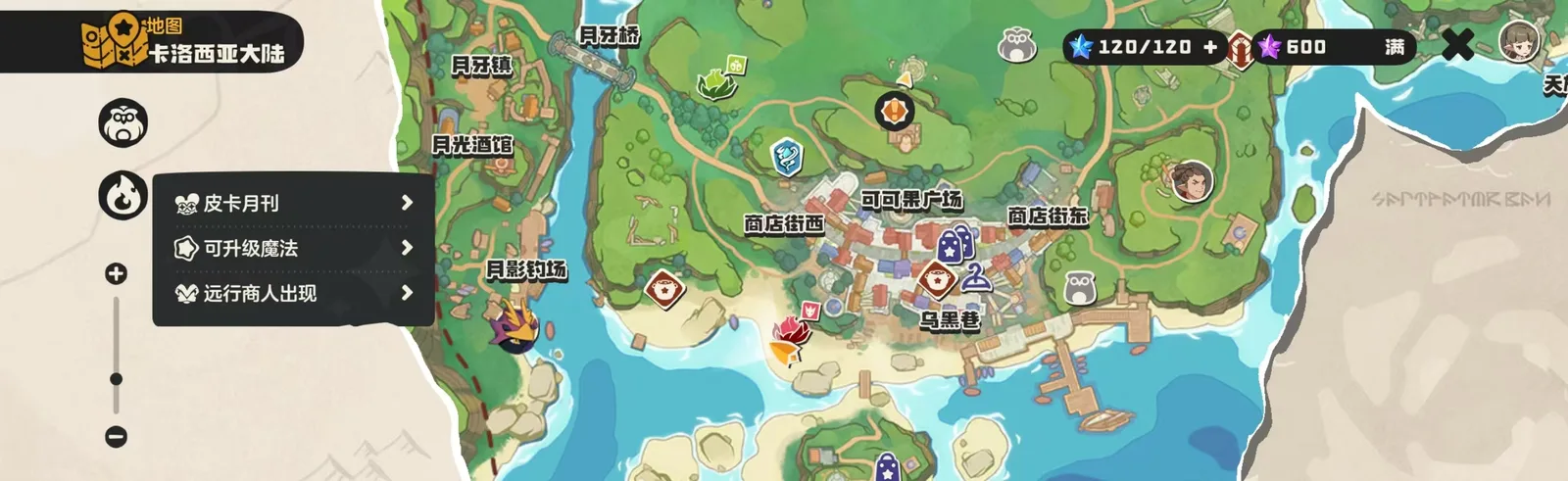
Step 1: Open the Mini Map
Tap the mini map in the top-right corner to open the full area map. The merchant is easier to find through map events than by running around blindly.
Step 2: Find the Dark Flame Marker
On the left side of the map, look for the dark flame-like event icon. In the screenshot, this expands into an event entry for the Traveling Merchant.
Step 3: Select the Merchant Event
After selecting the merchant event, the map points you toward the current merchant location. Note the nearby landmark, close the map, then head there in-game.
If You Cannot See the Marker
First, check the time window. The merchant usually appears between 8:00 and 24:00 and refreshes by rotation. For item refresh details, see the merchant refresh guide.
Second, make sure you are viewing the correct region map. Some event markers only appear in the relevant area.
Recommended Flow
Open the map, select the dark flame event marker, choose the Traveling Merchant entry, then go to the marked location. After finding the merchant, use the RocoDex Traveling Merchant module to check the current item rotation.